 COME
COMECOME Network Error on the First Launch
If COME reaches its first screen and then reports a network issue, record that app-stage message. The next check concerns loading content, while the APK installation result should be assessed separately.
Confirm how far the process reached
Check that Android reported installation complete and that the app launches. Note the first screen and message rather than describing the issue only as a failed download. This gives the help request a precise starting point.
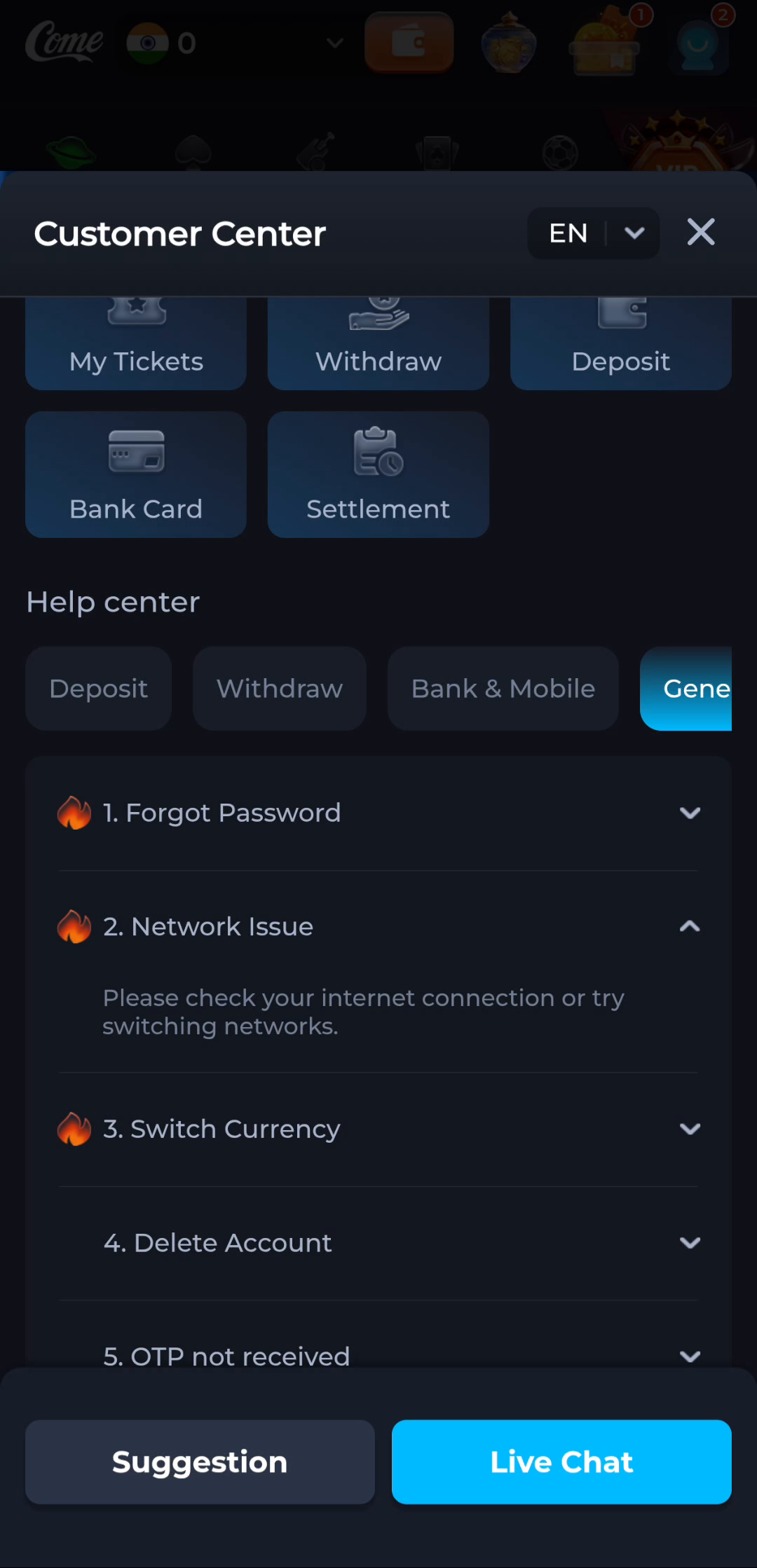
Compare a normal network request
Try an ordinary webpage on the same connection. The help topic shown here suggests checking the internet connection or switching networks. If another regular network is available, compare one change and record the result rather than repeatedly changing settings.
Keep the first-launch evidence
Retain the time, device software and whether other requests worked. If the issue persists, use current service help. Do not log out, clear data or disable protection as a routine response to a connection message.
A useful next step
Use Download for remaining package questions, and network help for the installed app’s loading issue.